How to Run Hermes Agent with Ollama
A practical guide to connecting Hermes Agent to a local Ollama model: what to install first, how the setup wizard works, and which endpoint Hermes expects.
How to Run Hermes Agent with Ollama
If you want Hermes Agent without cloud API costs, Ollama is the obvious path.
The current official integration flow is simple:
- install Hermes
- install Ollama
- pull a model
- run
hermes setup - point Hermes at the local Ollama endpoint
The important detail is that Hermes expects the Ollama OpenAI-compatible endpoint:
http://127.0.0.1:11434/v1
This article focuses on that exact path.
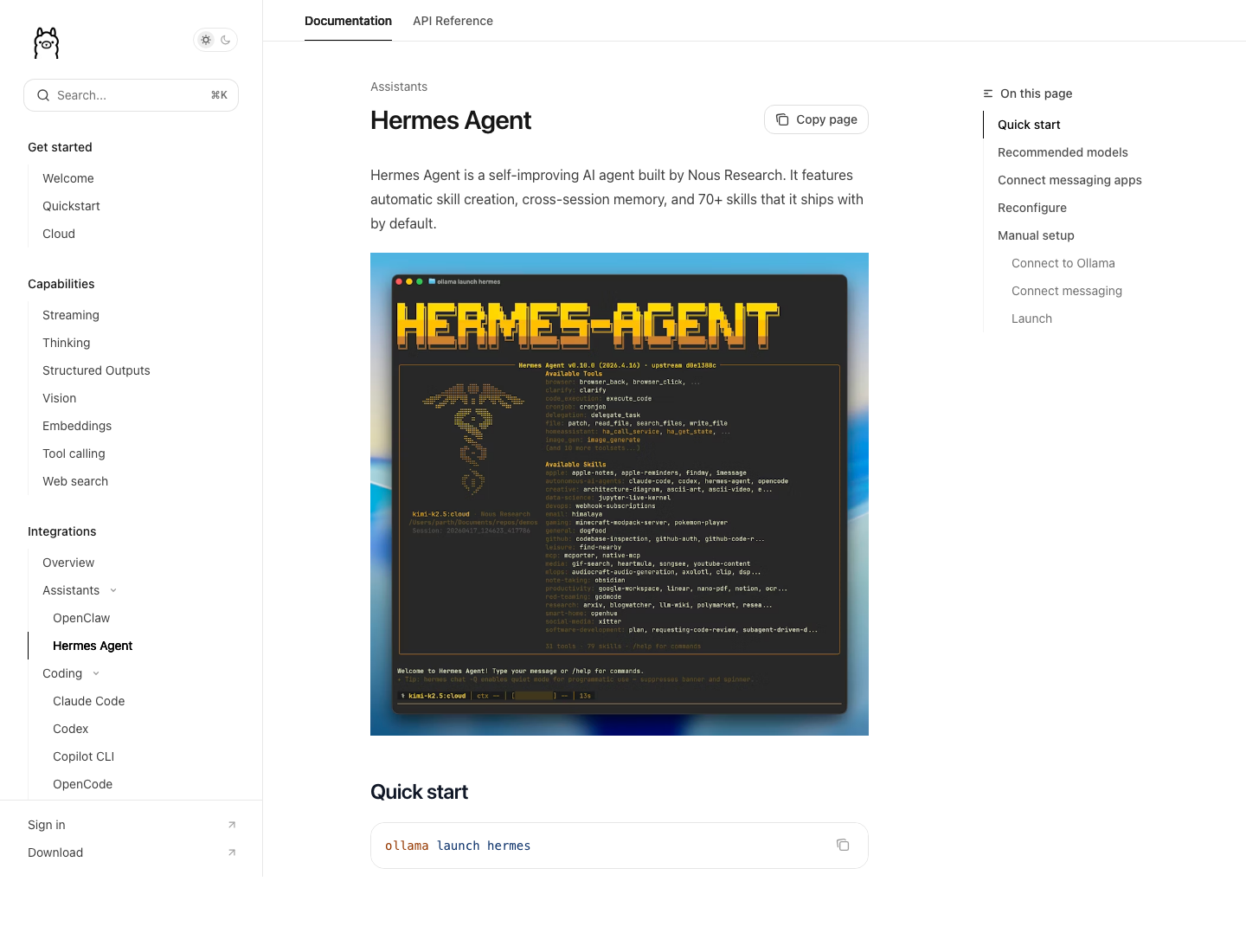
Source: Hermes Agent on Ollama docs
Before You Start
Make sure these pieces are already true:
- Hermes Agent is installed
hermes --versionworks- Ollama is installed
- your machine has enough RAM for the model you plan to use
If Hermes itself is not installed yet, fix that first. Local model setup is not the place to debug a broken base install.
Step 1: Install Ollama
Install Ollama from ollama.com.
On Linux or macOS, the common install command is:
curl -fsSL https://ollama.com/install.sh | sh
Then verify:
ollama --version
Step 2: Pull a Model
The Ollama integration docs for Hermes currently recommend pulling a model before running the setup wizard, because Hermes auto-detects locally available models.
Example:
ollama pull qwen3.5
The docs also mention local options like:
gemma4qwen3.5
Choose based on your hardware. A local model that is technically runnable but painfully slow is not a real setup win.
Step 3: Start Ollama
If Ollama is not already serving locally, start it:
ollama serve
By default, Ollama runs on:
http://127.0.0.1:11434
Hermes will connect through the OpenAI-compatible path at:
http://127.0.0.1:11434/v1
That is the endpoint the current official Hermes integration docs tell you to use.
Step 4: Run Hermes Setup
Now start the Hermes setup wizard:
hermes setup
Then follow the current documented flow:
- choose
Quick setup - go to
More providers... - choose
Custom endpoint (enter URL manually) - set the base URL to:
http://127.0.0.1:11434/v1
- leave the API key blank
- let Hermes auto-detect the local model
- confirm the detected model
- leave context length blank if you want auto-detect
That is the supported setup path in the current docs.
What Hermes Is Doing During Setup
The integration docs show that Hermes verifies the local Ollama endpoint by querying:
http://127.0.0.1:11434/v1/models
Then it shows any detected local model and asks whether you want to use it.
That means two things:
- Hermes is not asking you to hand-write config first
- if the model is not visible there, the setup wizard cannot complete cleanly
Step 5: Test a Real Session
Once setup finishes, start Hermes normally:
hermes
Then ask a simple question or run a small task. Do not begin with a giant workflow. First confirm:
- the model responds
- latency is acceptable
- the local box can sustain the workload
If you want to change models later, use:
hermes model
When Local Hermes Makes Sense
Local Hermes is strongest when you care about:
- keeping data on your own machine
- removing cloud API cost
- experimenting with local workflows
- using a laptop or workstation as a private agent runtime
It is especially good for:
- drafting
- summarization
- simple automation
- personal knowledge workflows
It is less convincing when you want frontier-model reasoning on weak hardware.
The 5 Most Common Mistakes
1. Trying local models before the Hermes base install is stable
If hermes itself is flaky, fix that first.
2. Forgetting to pull a model before setup
The docs assume Hermes will auto-detect a local model that already exists.
3. Pointing Hermes at the wrong endpoint
For the current documented integration path, Hermes expects:
http://127.0.0.1:11434/v1
4. Choosing a model that your hardware cannot realistically run
A technically loaded model is not useful if the latency makes Hermes painful to use.
5. Expecting local-only to be perfect for every task
Local is great for privacy and cost, but quality still depends on the model and the machine behind it.
A Good Practical Baseline
If you want one straightforward local setup:
- install Hermes
- install Ollama
- pull
qwen3.5or another reasonable local model - run
hermes setup - point Hermes to
http://127.0.0.1:11434/v1 - verify the detected model
- run a small real task
That is enough to get a real local Hermes session working.
Quick Checklist
- Install Hermes first
- Install Ollama
- Pull a local model
- Start Ollama
- Run
hermes setup - Use
http://127.0.0.1:11434/v1 - Confirm model detection
- Test with a small real task